一、前言
机器必须为debian/ubuntu 脚本不支持centos7机器执行
本文记录使用 1keydd leitbogioro bin456789 大佬的脚本,对市面上常见服务商的vps dd成windows和dd成linux的记录
大家可以看右边目录寻找自己需要的
二、脚本使用
1、查看网卡信息
通常是通过 ip route show ifconfig 命令获得,具体可以看我的示例
2、查看启动方式
机器不同的启动方式一般对应不同的dd包,执行这条命令查看vps启动方式是 UEFI 还是 BIOS
| [ -d /sys/firmware/efi ] && echo UEFI || echo BIOS |
1keydd脚本执行
替换为自己的公网IP 子网掩码和网关
镜像可以自定义,你可以换成windows centos ubuntu debian pve 等都行
| wget -qO- inst.sh|bash -s – -n ip,netmask,gateway -t 自定义镜像/dd包 |
执行成功后可以通过
http://ip:80通过vnc查看dd进度,具体日志可以通过http://ip:8000查看
三、镜像dd包
暂时知道的dd包如下:
- 1keydd作者的win10二合一dd包
- cxthhhhh大佬的dd包:https://odc.cxthhhhh.com/SyStem/Windows_DD_Disks
- natee大佬的dd包,网友备份站点:https://dd.591592.xyz/
- cosmiccat大佬的dd包:https://od1.cosmiccat.net/DD/
- 秋水逸冰大佬的的dd包:https://dl.lamp.sh/vhd/
这里我提供一些我备份的镜像包并列出一些参数
以下备份dd包均亲测有效
注:
- 如果 file.1323123.xyz 速度过慢(低于15MB/s),可以尝试使用镜像站 file2.1323123.xyz
- 秋水大佬的该win10 ltsc镜像会出现程序 wsappx 大量占用CPU和硬盘IO的情况,原因可能是未安装微软商店,但是实测部分机器 安装微软商店 后没有效果(有些机器也有效果) 暂不推荐使用
- 部分包不支持dd过程中注入静态网卡,无VNC的机器请选择支持脚本注入网卡的dd包
- 网卡规则的机器想dd为linux建议首选leitbogioro大佬的脚本,从源安装linux
PS:欢迎推荐其他镜像
四、常见问题
- 远程登录账号密码是什么
windows账号都是 Administrator ,密码是 1keydd 或者 cxthhhhh.com nat.ee Teddysun.com ,1keydd脚本会将dd包的密码自动更改为 1keydd ,bin456789的不会修改dd包原本密码
- 如何更改windows远程密码
可以参考pve那节:安装PVE并创建linux windows mac记录 | tanglu’s blog
- 80端口显示
Something went wrong, connection is closed
vnc 5900端口未放行
- 80端口打开显示空页面
我也遇到过,可能是浏览器插件,后来我下载了个火狐浏览器没有任何插件就行了
- 硬盘大小于实际不符
需要你自己扩容,windows扩容是在磁盘管理中 比较简单
linux扩容就有些复杂,有些是LVM格式 有些是其他格式,LVM格式扩容可以参考 这里
- VNC观察到dd成功后 3389端口一直不通
应该是dd后无法进入系统修改网卡,请选用支持注入网卡的dd包。有VNC的可以通过VNC进入,手动配置网卡
- cxthhhhh的win7旗舰版太精简了 没有浏览器
通过快捷键win+R打开运行窗口,输入 iexplore 然后确定就可以打开IE浏览器了,通过IE浏览器下载其他浏览器 注意google和edge已经不支持win7
- cxthhhhh镜像无法下载
作者拉黑了部分服务商的IP,可以用我复制的备份
- VNC控制台启动windows蓝屏报错
0xc000021a
镜像的驱动问题,换个镜像试试
- No bootable device
BIOS启动的机器你使用的UEFI dd包,或者UEFI启动的机器你使用的BIOS启动的dd包
- 多硬盘多IP
这个我不会,可以去问问1keydd作者
- 远程卡顿
这很正常 请使用隧道中转
- 部分VNC鼠标漂移
好像是分辨率的问题暂不知道如何解决
- 激活密钥
不了解 可以去某宝看看
- nat机是否可以dd
应该可以 没有试过
- dd后无ipv6
1keydd脚本及萌咖脚本有点小问题:dd后ipv6网卡会消失。纯ipv6小鸡dd后添加网卡可以看下面 hosmatic 这个例子
- 执行脚本后无输出
可能是脚本证书问题导致无法下载 忽略证书检测试试 wget -qO- inst.sh --no-check-certificate | bash -s ...
- 执行脚本报错
sudo ar curl missing !error happen while autoinstall! please running 'apt-get update && apt-get install sudo sudo binutils sudo curl binutils ' to install them
应该是机器执行 apt update 产生了报错,我也不太懂这个,我的解决办法是将 /etc/apt/sources.list 文件中的内容全部删去 然后新增 deb [trusted=yes] http://deb.debian.org/debian buster main ,再次执行一般不会报错了(此方法不一定对)
- wget dd无法执行 ip:8000/progress 显示
dd: failed to open '/dev/sda': Read-only file system
详见 dd-extravm
- wget dd那一步 下载&解压dd包速度低于15MB/S
这种情况一般是服务商的网络下载我的备份文件速度过于缓慢,可以尝试将域名更换为镜像站域名 file2.1323123.xyz ,当然也不排除是CPU/硬盘过烂
五、常见dd脚本
以下脚本可能有更新,可能文中部分说法不准确,请评论/联系作者修正
1、萌咖脚本
项目地址:网友备份的站点
大多数dd脚本都是依照萌咖脚本二次开发的
下载脚本
| wget –no-check-certificate -qO InstallNET.sh ‘https://raw.githubusercontent.com/veip007/dd/master/InstallNET.sh’ && chmod +x InstallNET.sh |
用法
| #详细用法请参考 https://github.com/veip007/dd bash InstallNET.sh –ip-addr x.x.x.x –ip-gate x.x.x.x –ip-mask x.x.x.x -dd dd包直链 |
2、1keydd脚本
项目地址:https://github.com/minlearn/1keydd
个人感觉最适合dd windows的脚本
用法
| wget -qO- inst.sh | bash -s – -n ,netmask,gateway -t dd包直链 例: wget -qO- inst.sh | bash -s – -n 5.78.73.181,255.255.255.255,172.31.1.1 -t https://file.1323123.xyz/dd/windows/1keydd/win10ltsc_password_1keydd.gz wget -qO- inst.sh | bash -s – -n 2a0f:5707:aaef:292::1,ffff:ffff:0000:0000:0000:0000:0000:0000,2a0f:5707:aae0::1 -t https://file.1323123.xyz/dd/windows/cxthhhhh/Disk_Windows_7_Vienna_Ultimate_CN_v2.0.vhd.gz |
特点:
- dd过程中自带vnc窗口和日志,方便排错
- 支持 DHCP/静态/不规则网卡的机器
- 支持注入网卡,适合无VNC的机器
- 因为需要进入系统注入网卡,所以dd会擦除原密码并在登录时将密码修改为
1keydd - linux只支持从源安装debian10,其他linux系统不支持
- v4和v6只能选择一个,另一个dd后会掉
- …
3、leitbogioro脚本
项目地址:https://github.com/leitbogioro/Tools
个人推荐用来dd成linux
下载脚本
| wget –no-check-certificate -qO InstallNET.sh ‘https://raw.githubusercontent.com/leitbogioro/Tools/master/Linux_reinstall/InstallNET.sh’ && chmod a+x InstallNET.sh |
用法
| #详细用法请参考 https://github.com/leitbogioro/Tools #默认密码 LeitboGi0ro 例: bash InstallNET.sh –image https://file.1323123.xyz/dd/windows/natee/guajibao-win7-sp1-ent-x64-cn.vhd.gz –ip-addr 139.162.52.1 –ip-mask 24 –ip-gate 139.162.52.1 –ip6-addr 2a07:e040:2:1d3::1 –ip6-gate 2a07:e040::1 –ip6-mask 32 bash InstallNET.sh -centos 7 –ip-addr 139.162.52.11 –ip-mask 24 –ip-gate 139.162.52.1 –ip6-addr 2a07:e040:2:1d3::1 –ip6-gate 2a07:e040::1 –ip6-mask 32 |
特点:
- 支持从源dd为linux,支持的linux系统很全
- 只支持DHCP或者规则的静态网卡,不支持不规则网卡的机器
- 用dd包dd windows时,无法插入网卡,因此不适合无VNC的非DHCP小鸡dd windows
- …
4、bin456789脚本
项目地址:https://github.com/bin456789/reinstall
支持从windows系统dd成linux系统(亲测可行)
linux和windows密码都是 123@@@
windows示例:
| #首先下载好 reinstall.bat 和 reinstall.sh https://raw.githubusercontent.com/bin456789/reinstall/main/reinstall.bat https://raw.githubusercontent.com/bin456789/reinstall/main/reinstall.sh #通过云镜像dd到linux .\reinstall.bat centos 7 –ci #通过镜像包dd到其他系统 .\reinstall.bat dd –img=https://file.1323123.xyz/dd/windows/teddysun/zh-cn_windows11_22h2.xz #通过windows iso dd为其他windows .\reinstall.bat windows –iso=’https://file.1323123.xyz/pve/windows_without_virto/Win10_22H2_EnglishInternational_x64v1.iso’ –image-name=’Windows 10 Pro N’ #通过iso dd到linux #此方法只支持DHCP 不推荐 .\reinstall.bat debian 10 |
Linux示例:
linux我只尝试过通过dd包进行dd,并没有尝试使用iso安装
| #首先下载脚本 curl -O https://raw.githubusercontent.com/bin456789/reinstall/main/reinstall.sh #通过云镜像dd到linux bash reinstall.sh centos 7 –ci #通过镜像包dd到其他系统 bash reinstall.sh dd –img=https://file.1323123.xyz/dd/windows/natee/guajibao-win10-ent-ltsc-2021-x64-cn.vhd.gz #通过windows iso dd为其他windows bash reinstall.sh windows –iso=https://file.1323123.xyz/pve/windows_without_virto/Win10_22H2_EnglishInternational_x64v1.iso –image-name=’Windows 10 Pro’ #通过iso dd到linux #此方法只支持DHCP 不推荐 bash reinstall.sh debian 10 |
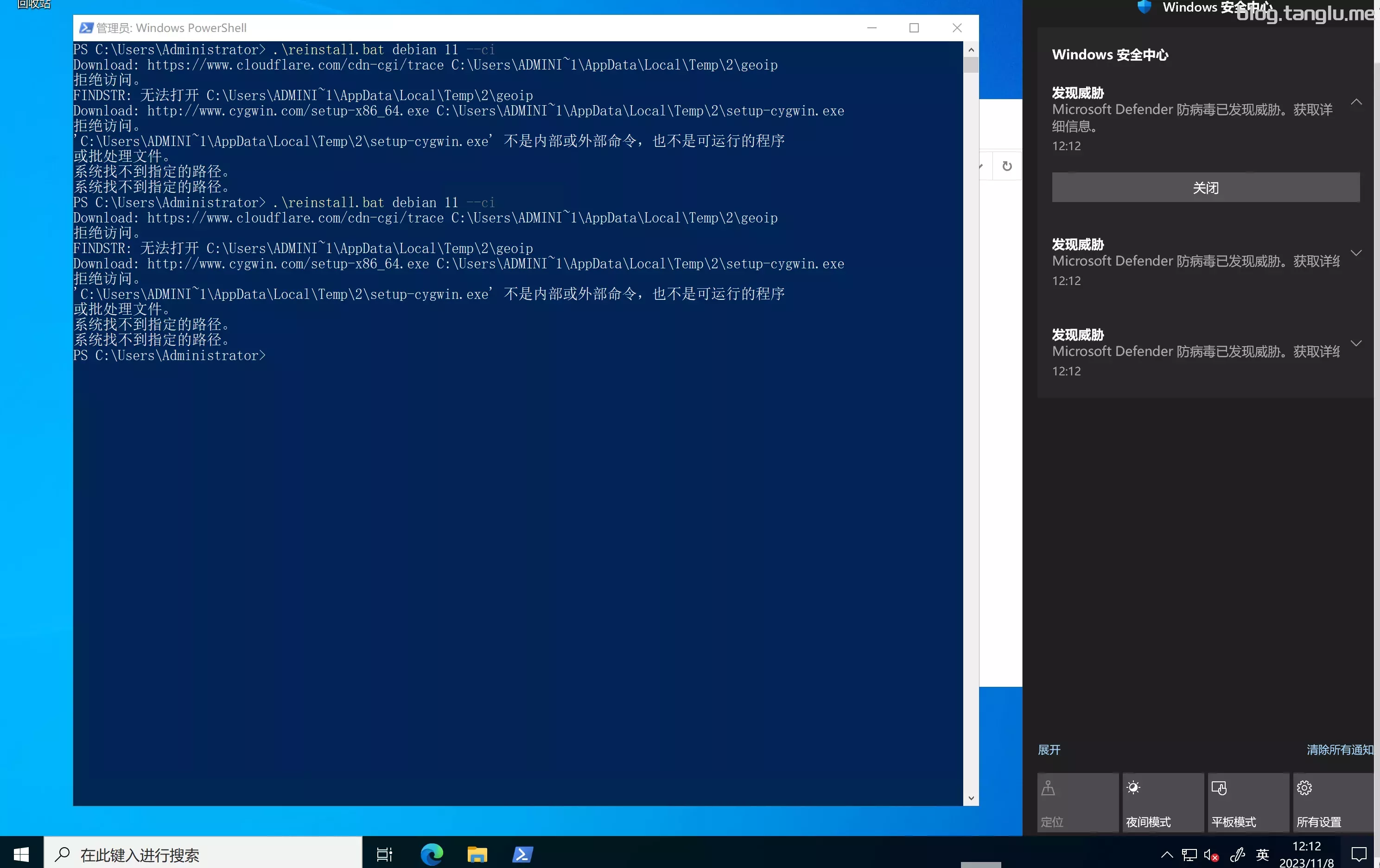
记得关闭windows defender 尤其是
实时保护,否则可能会出现如下报错
特点:
- 支持从源dd为linux,支持的linux系统很全
- 支持通过iso dd windows
- 支持将windows dd为linux
- dd过程中可通过80端口查看日志
- 支持 DHCP/静态/不规则网卡的机器
- 支持注入网卡,适合无VNC的机器
- 支持小内存安装,0.5GB内存足够
- 暂不支持多网卡
- …
| 系统 | CPU | image name | iso直链 |
|---|---|---|---|
| virtio | https://fedorapeople.org/groups/virt/virtio-win/direct-downloads/archive-virtio/virtio-win-0.1.240-1/virtio-win-0.1.240.iso | ||
| win7 | x64 | Windows 7 HOMEBASICWindows 7 HOMEPREMIUMWindows 7 PROFESSIONALWindows 7 ULTIMATE | https://file.1323123.xyz/pve/windows_without_virto/Windows_7_Home_Premium_64-bit.iso |
| win8.1 | x64 | Windows 8.1Windows 8.1 Pro | https://file.1323123.xyz/pve/windows_without_virto/Win8.1_English_x64.iso |
| win10 | x64 | Windows 10 HomeWindows 10 Home NWindows 10 Home Single LanguageWindows 10 EducationWindows 10 Education NWindows 10 ProWindows 10 Pro NWindows 10 Pro EducationWindows 10 Pro Education NWindows 10 Pro for WorkstationsWindows 10 Pro N for Workstations | https://file.1323123.xyz/pve/windows_without_virto/Win10_22H2_EnglishInternational_x64v1.iso |
| win11 | x64 | Windows 11 HomeWindows 11 Home NWindows 11 Home Single LanguageWindows 11 EducationWindows 11 Education NWindows 11 ProWindows 11 Pro NWindows 11 Pro EducationWindows 11 Pro Education NWindows 11 Pro for WorkstationsWindows 11 Pro N for Workstations | https://file.1323123.xyz/pve/windows_without_virto/Win11_23H2_English_x64.iso |
| ws2012 R2 | x64 | Windows Server 2012 R2 SERVERSTANDARDCOREWindows Server 2012 R2 SERVERSTANDARDWindows Server 2012 R2 SERVERDATACENTERCOREWindows Server 2012 R2 SERVERDATACENTER | https://file.1323123.xyz/pve/windows_without_virto/X64FRE_SERVER_EVAL_EN-US-IR3_SSS_X64FREE_EN-US_DV9_2012_R2.iso |
| ws2016 | x64 | Windows Server 2016 SERVERSTANDARDCOREWindows Server 2016 SERVERSTANDARDWindows Server 2016 SERVERDATACENTERCOREWindows Server 2016 SERVERDATACENTER | https://file.1323123.xyz/pve/windows_without_virto/Windows_Server_2016_Datacenter_EVAL_en-us_14393_refresh.iso |
| ws2019 | x64 | Windows Server 2019 SERVERSTANDARDCOREWindows Server 2019 SERVERSTANDARDWindows Server 2019 SERVERDATACENTERCOREWindows Server 2019 SERVERDATACENTER | https://file.1323123.xyz/pve/windows_without_virto/rs5_release_svc_refresh_SERVER_EVAL_x64FRE_en-us_2019.iso |
| ws 2022 | x64 | Windows Server 2022 SERVERSTANDARDCOREWindows Server 2022 SERVERSTANDARDWindows Server 2022 SERVERDATACENTERCOREWindows Server 2022 SERVERDATACENTER | https://file.1323123.xyz/pve/windows_without_virto/SERVER_EVAL_x64FRE_en-us_2022.iso |
5、秋水逸冰脚本
项目地址:https://teddysun.com
萌咖脚本的二开版本
用法
| #我不太请求秋水的脚本用法 wget -qO DebianNET.sh qiu.sh/dd && bash DebianNET.sh -dd dd包直链 |
六、示例
以下服务器默认是服务商的vps,而非独服。几乎所有均为境外vps
请仔细阅读服务商条款,一些商家不允许dd windows 可能有删机/封号风险
商家口碑可以查看此频道的评论:例如hetzner就搜索
#hetzner
前提条件:
- 机器系统为debian/ubuntu(1keydd脚本centos机器无法执行) 演示中没有明确标明ubuntu的话默认是debian10/11
- 内存最好2GB 1GB内存推荐安装win7
- 硬盘不能少于解压后镜像的大小(镜像那节有标记)
- 虚拟化可以是kvm或xen 不支持openvz
通过 ip:8000/progress 或80vnc端口 显示解压完后,会重启 重启这个过程会花费1~20分钟
Leave a Reply